Skip to content
View in the app

A better way to browse. Learn more.

GamingCR

A full-screen app on your home screen with push notifications, badges and more.

To install this app on iOS and iPadOS
  1. Tap the Share icon in Safari
  2. Scroll the menu and tap Add to Home Screen.
  3. Tap Add in the top-right corner.
To install this app on Android
  1. Tap the 3-dot menu (⋮) in the top-right corner of the browser.
  2. Tap Add to Home screen or Install app.
  3. Confirm by tapping Install.

Sky

Administrador
  • Joined

  • Last visited

Everything posted by Sky

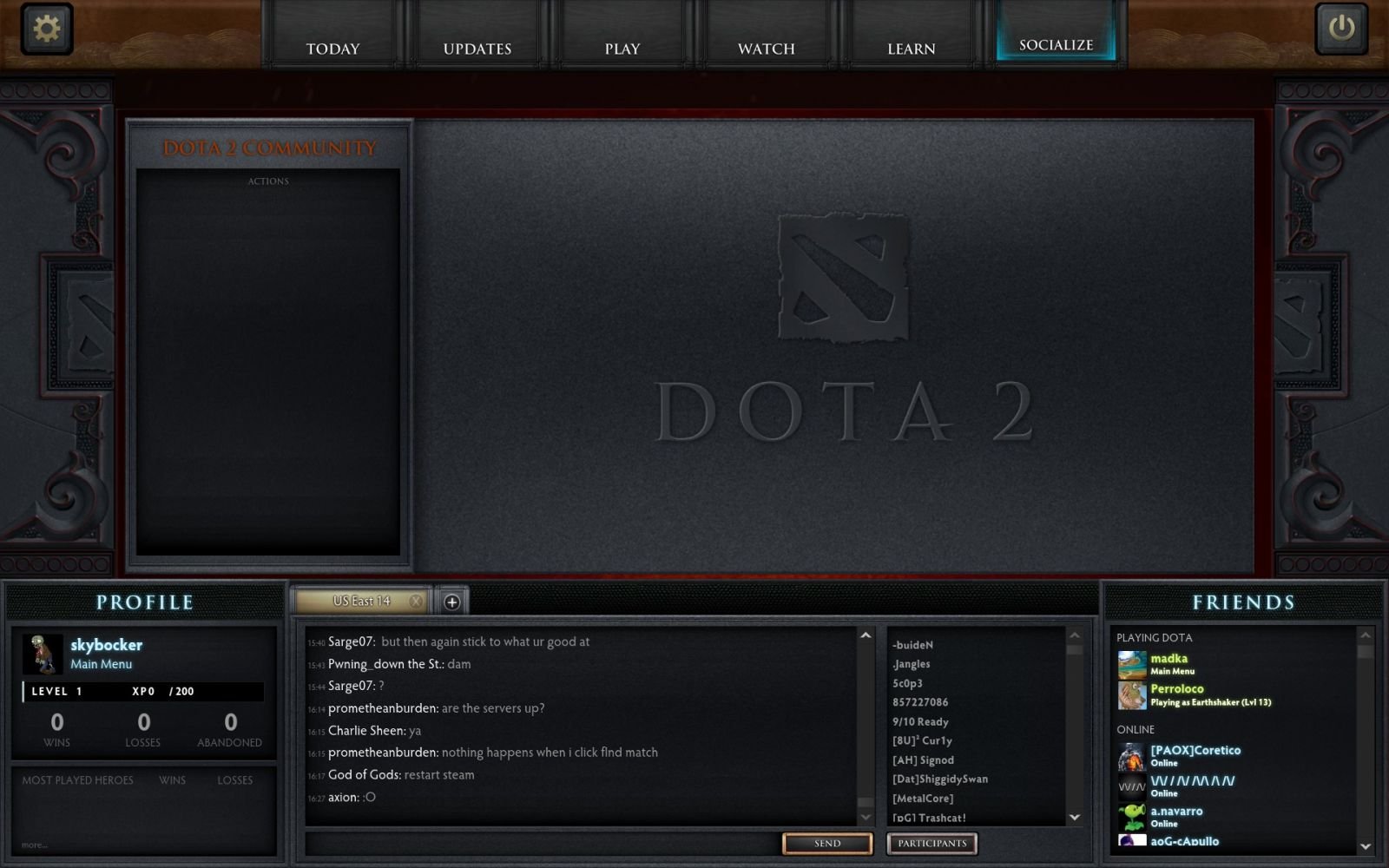
  1. Sky posted a gallery image in Games
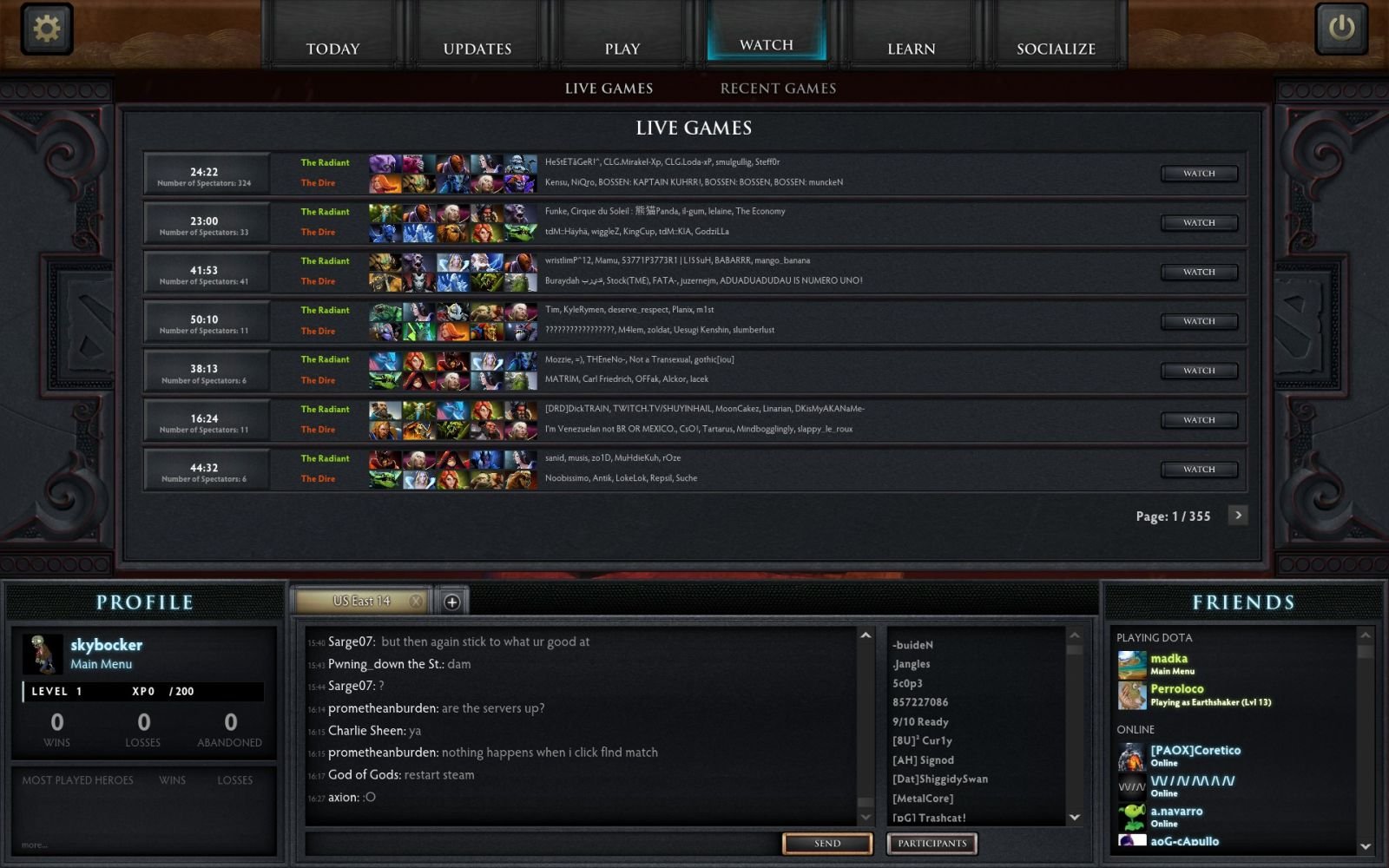
  2. Sky posted a gallery image in Games
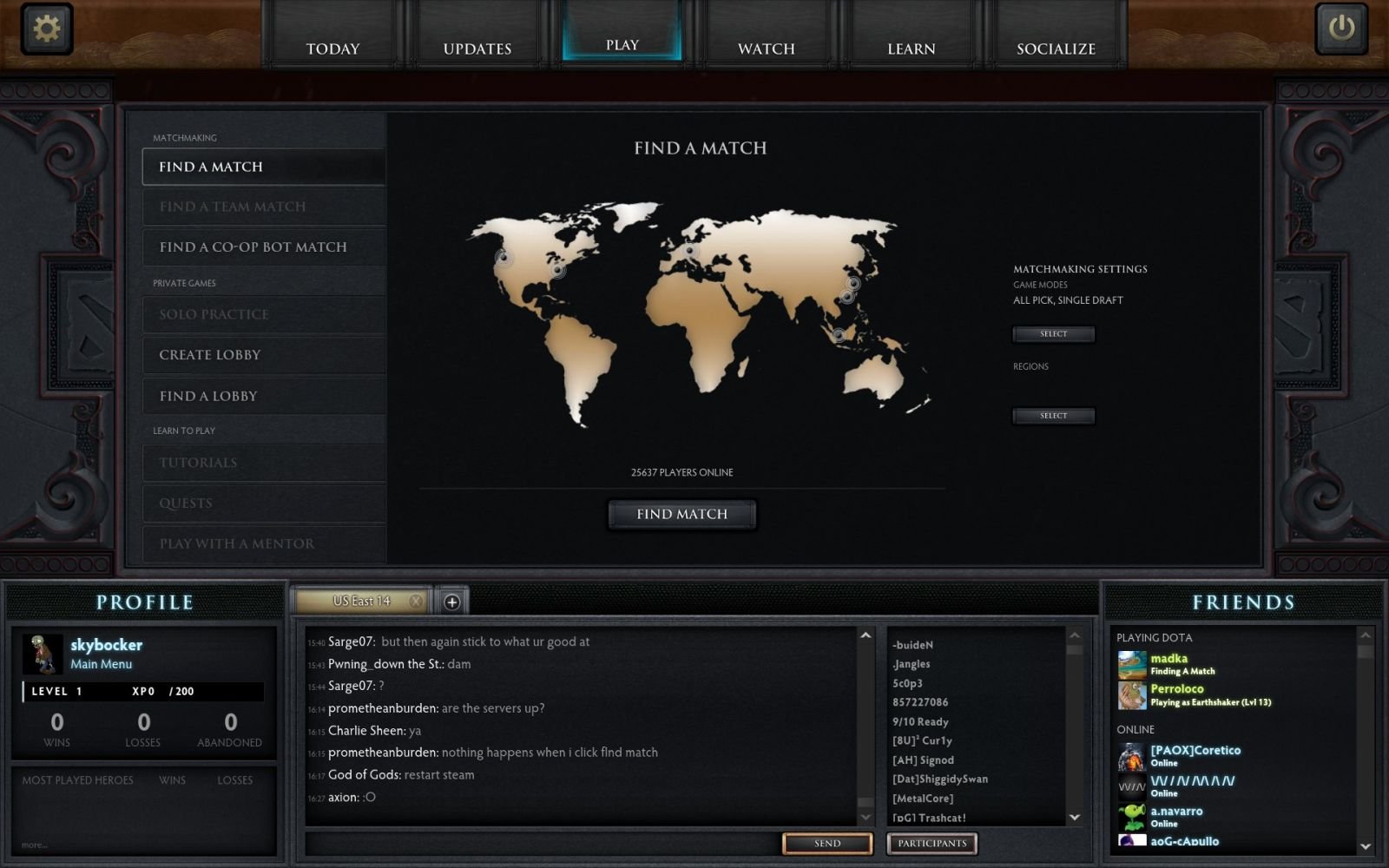
  3. Sky posted a gallery image in Games
  4. Sky posted a gallery image in Games
  5. Sky posted a gallery image in Games
  6. Sky posted a gallery image in Games
  7. Sky posted a gallery image in Games
  8. Sky posted a gallery image in Games
  9. Sky posted a gallery image in Games
  10. Sky posted a gallery image in Games
  11. Sky posted a gallery image in Games
  12. Sky posted a gallery image in Games
  13. Sky posted a gallery image in Games
  14. Sky posted a gallery image in Games
  15. Sky posted a gallery image in Games
  16. Sky posted a gallery image in Games
  17. Sky posted a gallery image in Games
  18. Sky posted a gallery image in Games
  19. Sky posted a gallery image in Games
  20. Sky posted a gallery image in Games
  21. Sky replied to Sky's topic in Videos
    ¡Ojo que bueno!
  22. Otro punto de visto pero de Forbes:
  23. Para los que no tienen key, aquí está este "DOTA para iOS" que puede interesarles...
  24. Jaja, ya lo corrijo.

Account

Navigation

Search

Search

Configure browser push notifications

Chrome (Android)
  1. Tap the lock icon next to the address bar.
  2. Tap Permissions → Notifications.
  3. Adjust your preference.
Chrome (Desktop)
  1. Click the padlock icon in the address bar.
  2. Select Site settings.
  3. Find Notifications and adjust your preference.